

The Segment Execution Type of External is intended to be used by marketers who perform their Member segmentation outside of Loyalty. The platform allows you populate a Loyalty Segment based on the results of that external segmentation by importing a file of Members.
When importing Members into a Segment, the import file must conform to the following:
-
Comma-delimited or semicolon-delimited
-
Contain only one of the following identifier columns:
-
Member ID (column name: id)
-
Email Address (column name: email)
-
Integration ID (column name: integration_id)
-
This topic assumes that you have already performed the segmentation outside of Loyalty, that you have created the import file of Members, and that you have created a Segment with an Execution Type of External (see
To import Members into a Segment:
-
Select Members from the top navigation bar, then select Segments from the side navigation menu. The Segments screen is displayed.
-
Search for and select the desired Segment (see
-
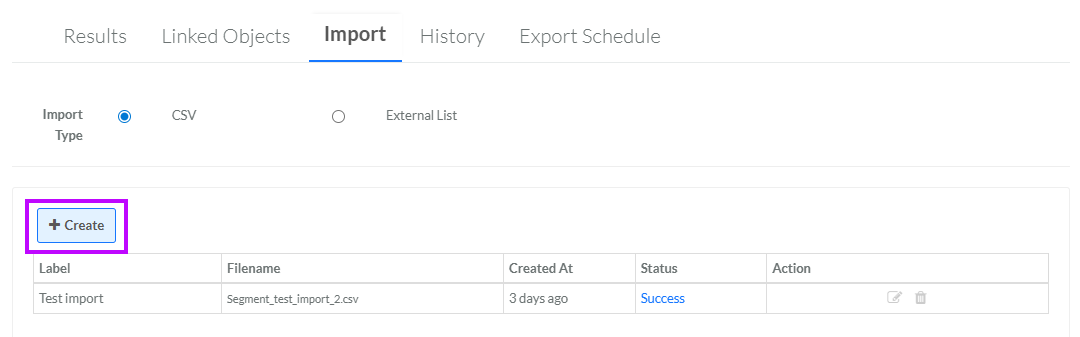
Select the Import tab.
-
Next to Import Type, select CSV.
-
Click Create. The Add New External Segment Import pop-up window is displayed.
-
In the Display Name field, enter a name for the new import.
-
Optionally, in the Description field, enter a description of this item.
-
Next to Col Sep, select a column delimiter, either Comma or Semicolon.
-
Click Choose File. Browse to and select the desired file, then click Open.
-
Click Save. The system imports the selected file.
-
To view the contents of the import file, select the Results tab. You may need to refresh your browser to see the imported records.
